

OmniCXM - Worldfone4X Mobile User Guide
After signing in successfully, users can access the full range of OmniCXM – Worldfone4X Mobile features to manage customer interactions across multiple communication channels directly from their smartphones. The application integrates customer communication, calling, ticket management, and performance monitoring into a single platform, enabling agents to work efficiently from anywhere.
The main features of the application include:
- Dashboard
- Monitoring & Location Tracking
- Omnichannel Chat
- Ticket Management
- Call Center
- Settings
Dashboard
The Dashboard provides a real-time overview of agent performance and Contact Center operations. It enables users to quickly monitor key metrics, evaluate customer service performance, and make timely decisions.
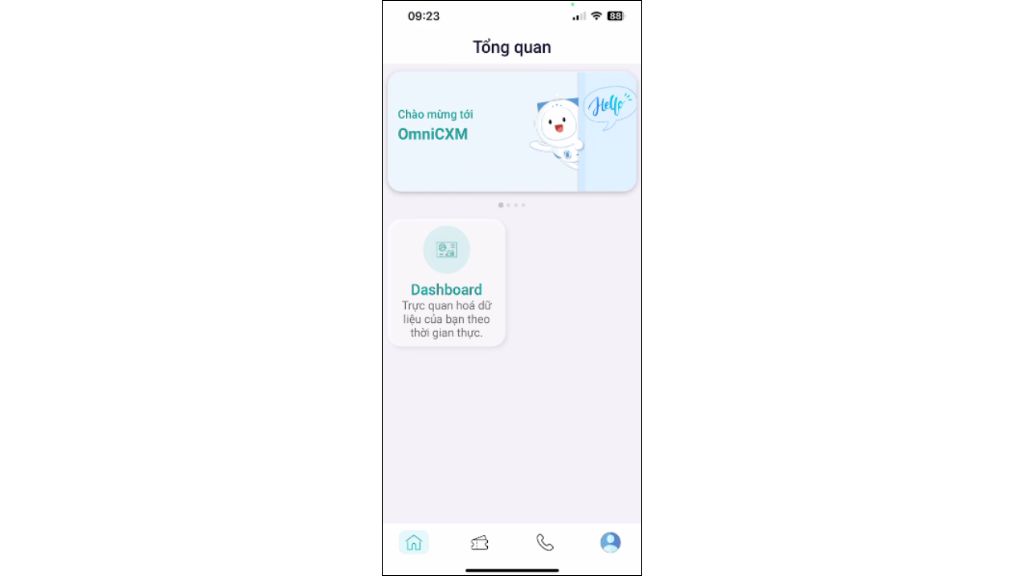
The Dashboard includes the following report groups:
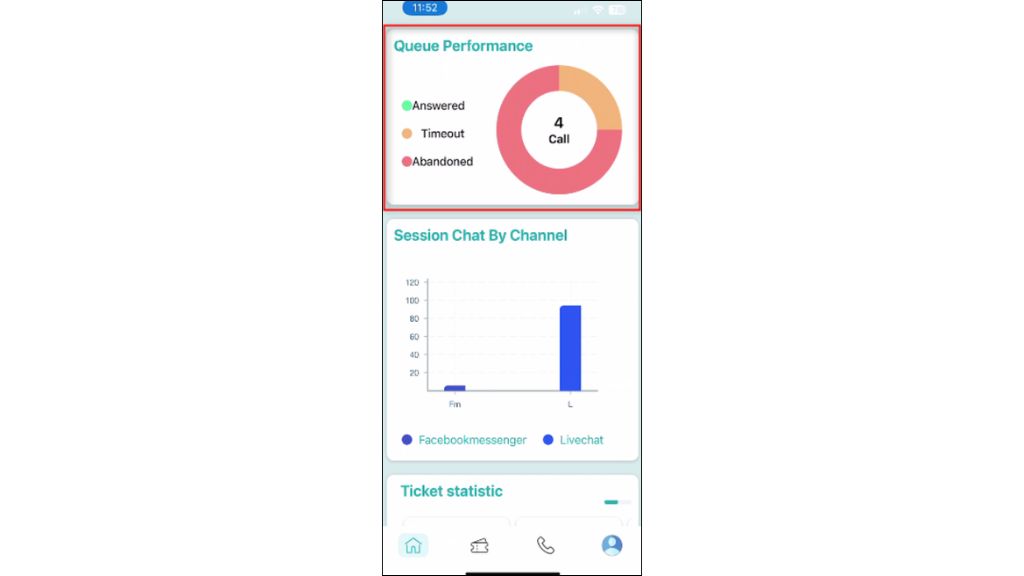
- Queue Performance: Monitor total calls, answered calls, abandoned calls due to timeout, and dropped calls.
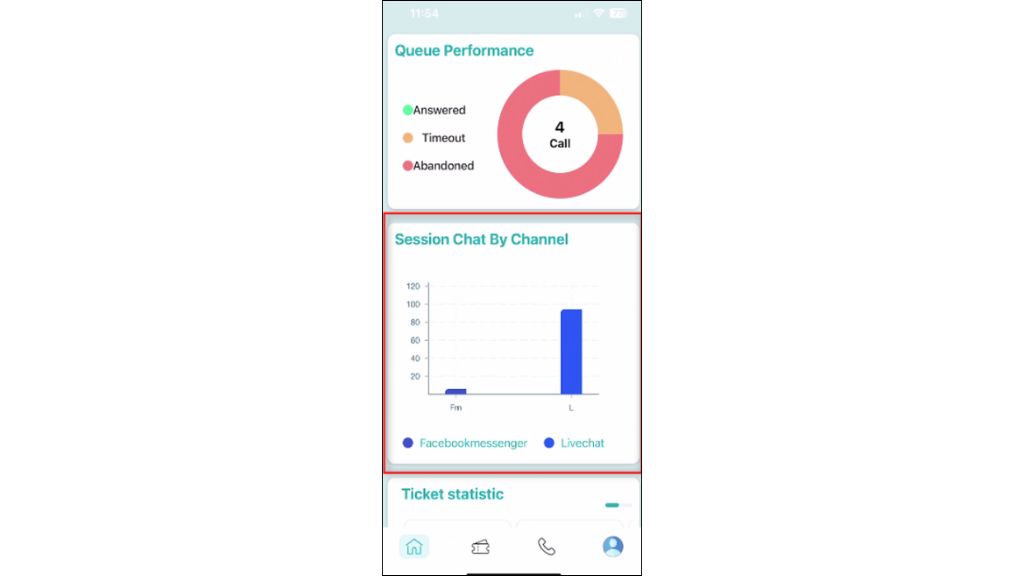
- Session Chat by Channel: Track the number of chat sessions received, resolved, reopened, and completed across each communication channel.
- Ticket Statistics: Monitor newly created, assigned, resolved, and closed tickets, along with average processing time.
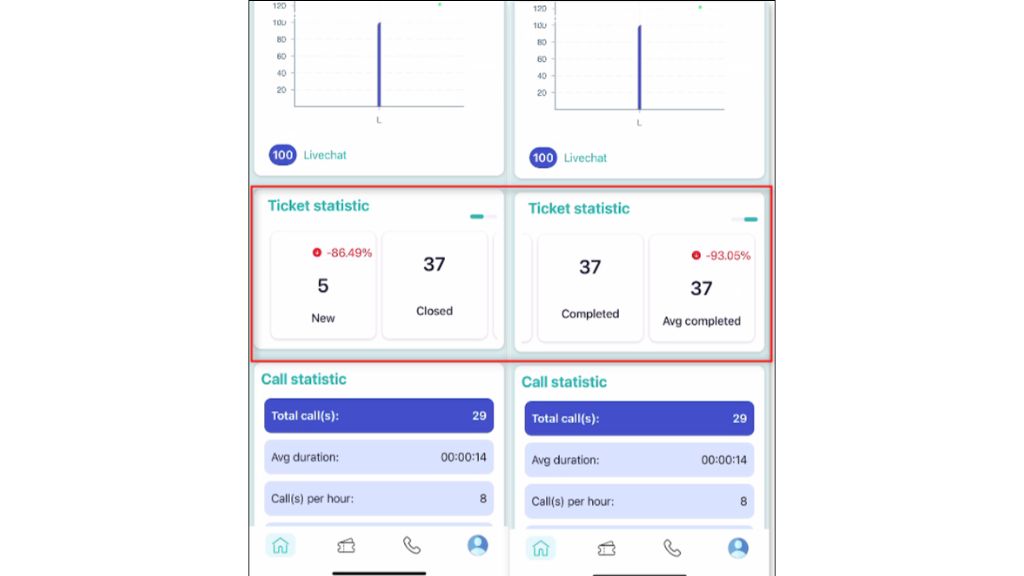
- Call Statistics: View total calls, talk time, answer rate, call distribution by time period, and other call-related metrics.
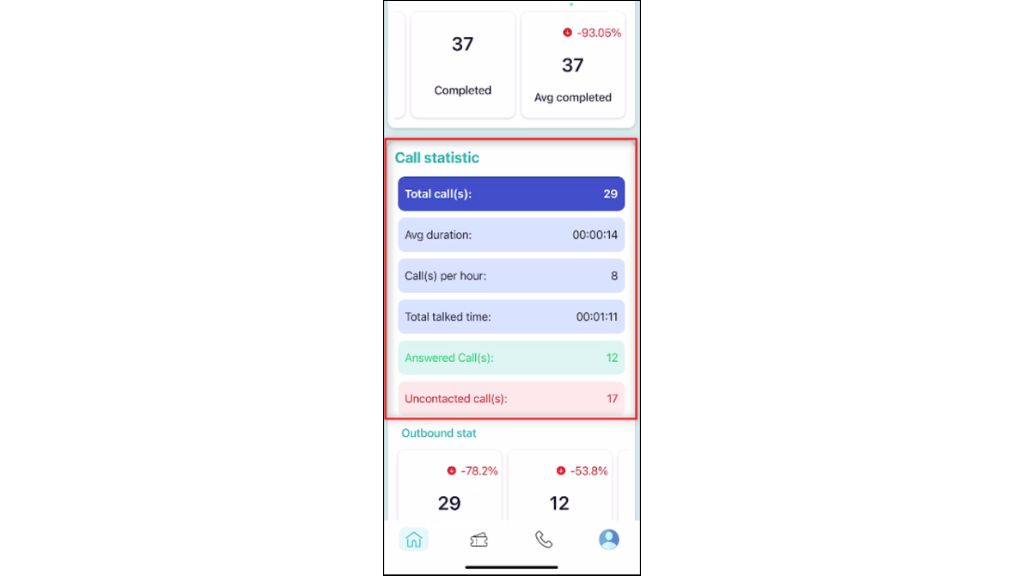
- Outbound Statistics: Track total outbound calls, answered outbound calls, answer rate, and calls terminated before connection.
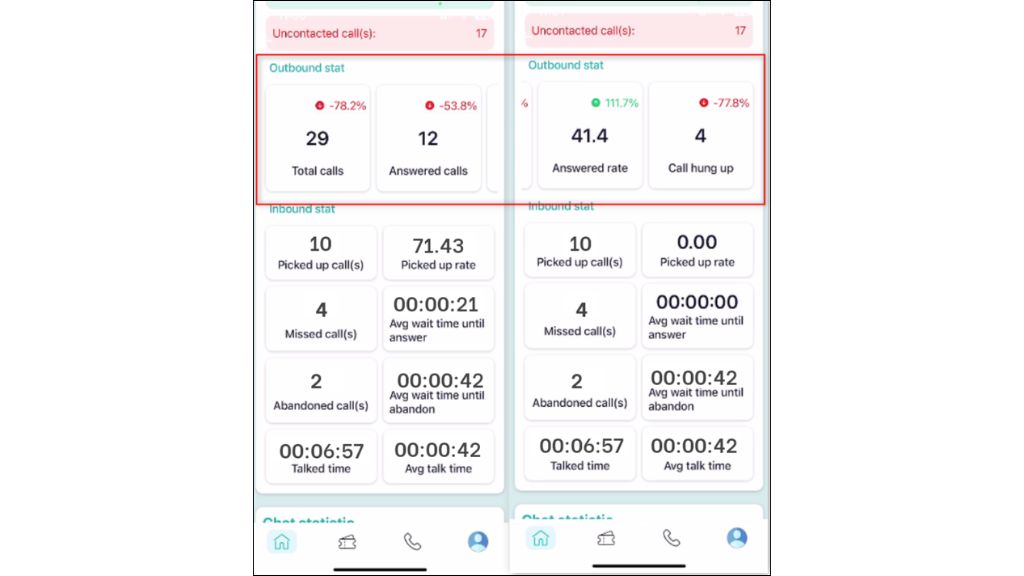
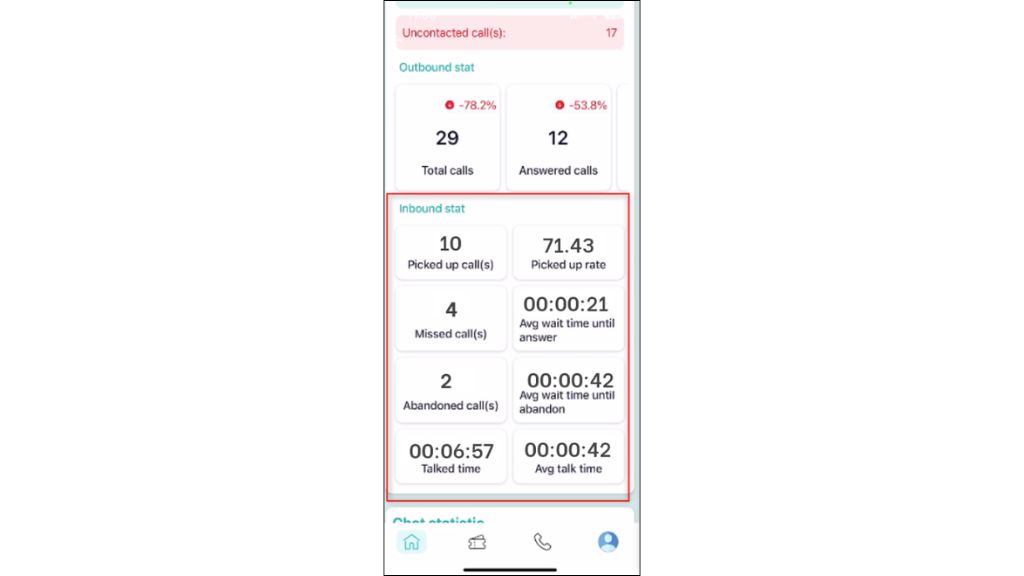
- Inbound Statistics: Monitor answered calls, missed calls, answer rate, average waiting time, and total talk time.
- Chat Statistics: View the number of chat rooms, active conversations, resolved sessions, and completed chats during the day.
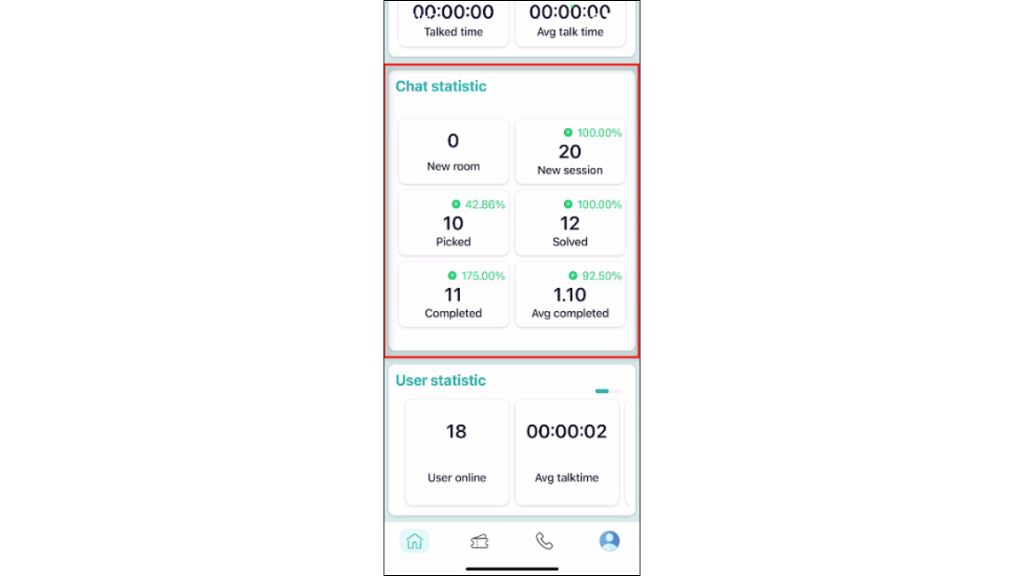
- Agent Statistics: Monitor online agents, average talk time, longest conversation, and agent working status.
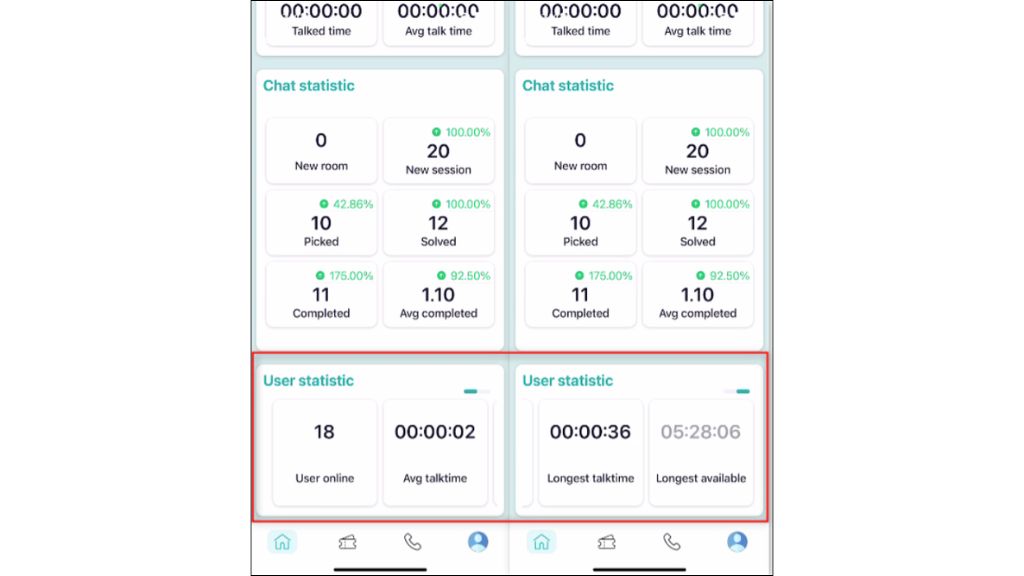
Agent Monitoring & Location Tracking
The Map tab allows supervisors or authorized users to monitor agents' working locations in real time using an interactive map. This feature helps track field staff activities and displays each agent's latest login location.
Location information includes:
- - Username
- - Current location
- - Job title
- - Last location update time
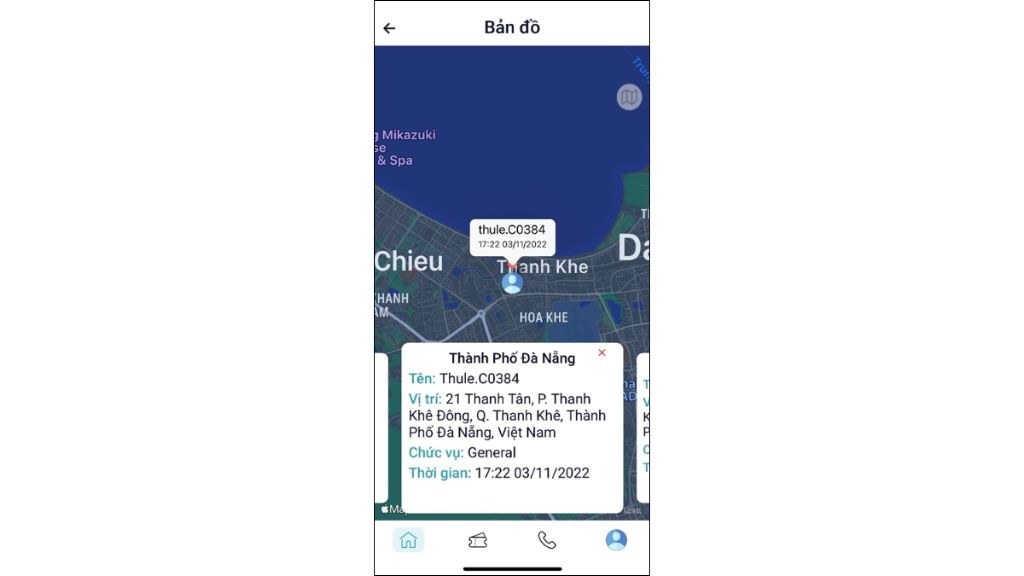
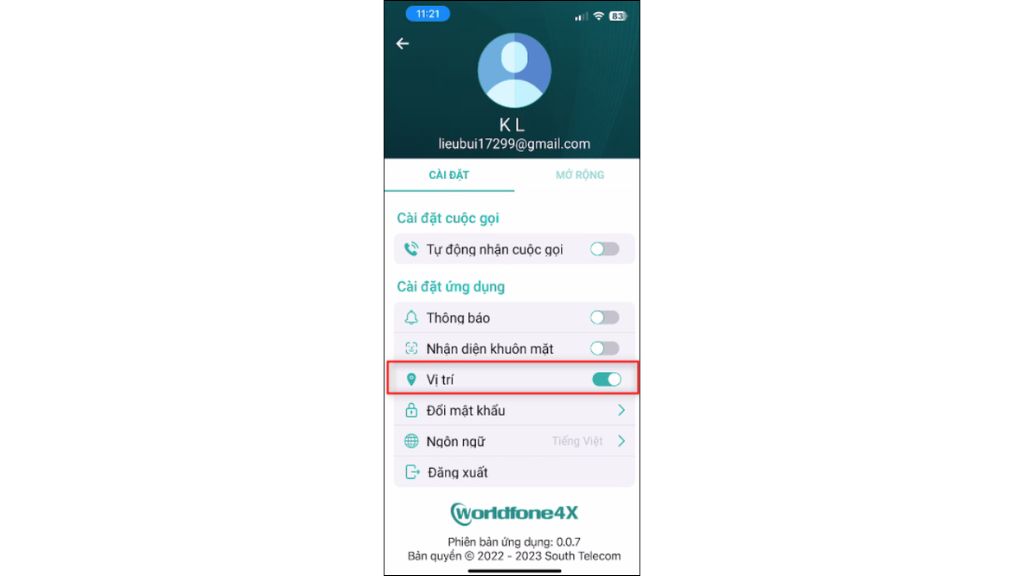
*Note: For first-time users, the Map widget will not appear on the Home screen until Location permission is enabled in Settings and the application is granted access to the device's location.
Ticket Management
The Ticket tab enables users to create, manage, and process customer support requests directly from the application. Users can search, filter, and organize tickets by status, priority, assignee, or creation date for easier management.
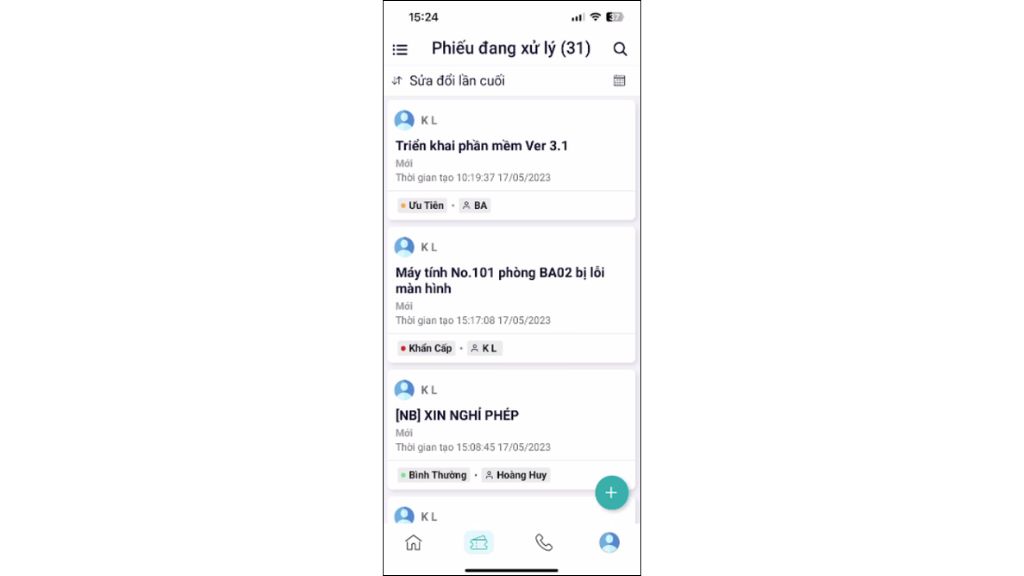
Create a Ticket
Tap Create New, then enter the required information, including requester, request type, priority, assignee, due date, subject, description, and attachments (if any). Tap Create to submit the ticket.
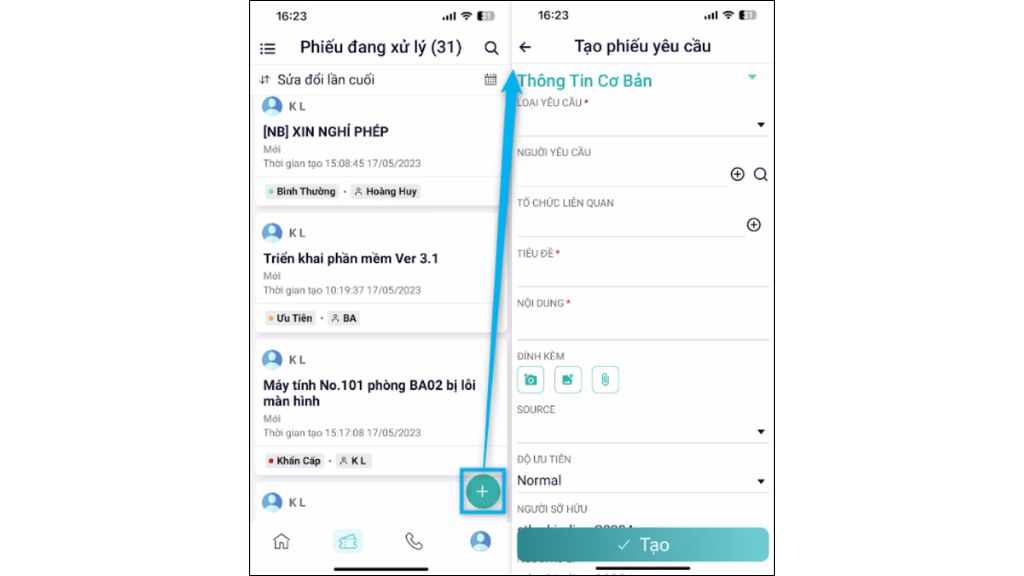
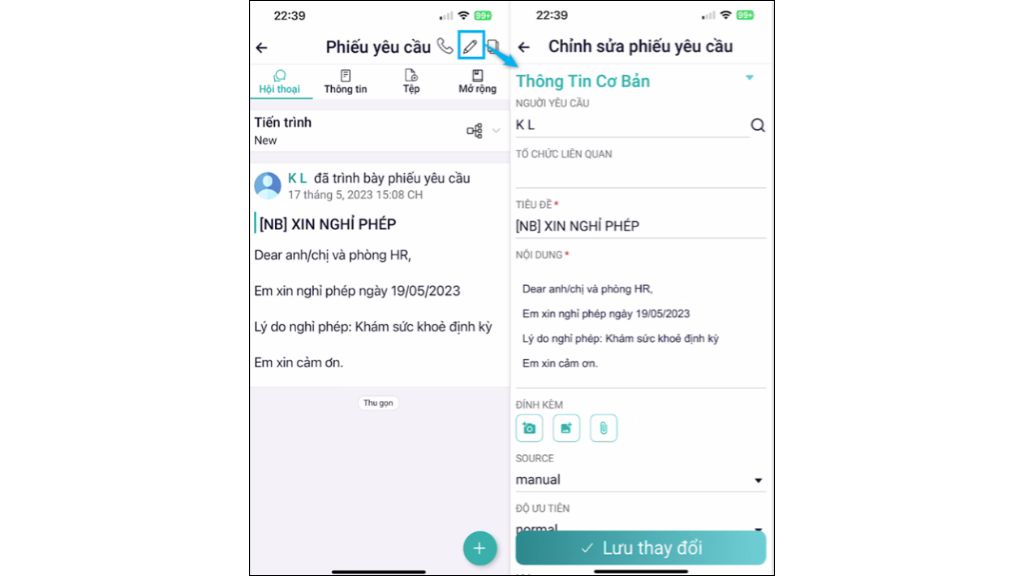
Edit a Ticket
Users can update ticket information such as the subject, description, assignee, priority, due date, and other details whenever necessary.
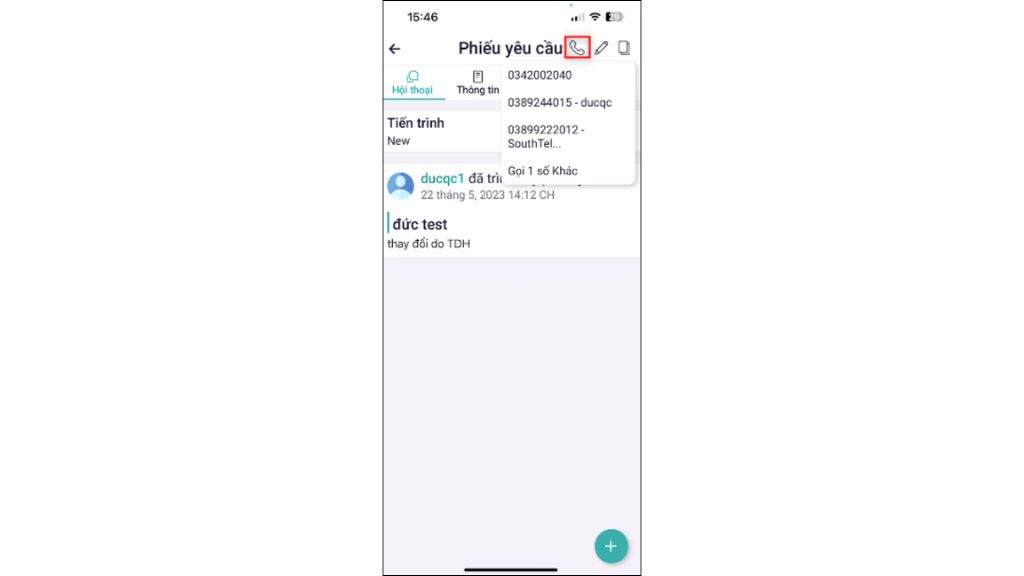
Call from a Ticket
OmniCXM allows users to make phone calls directly from a ticket to the customer or assigned agent without leaving the ticket screen.
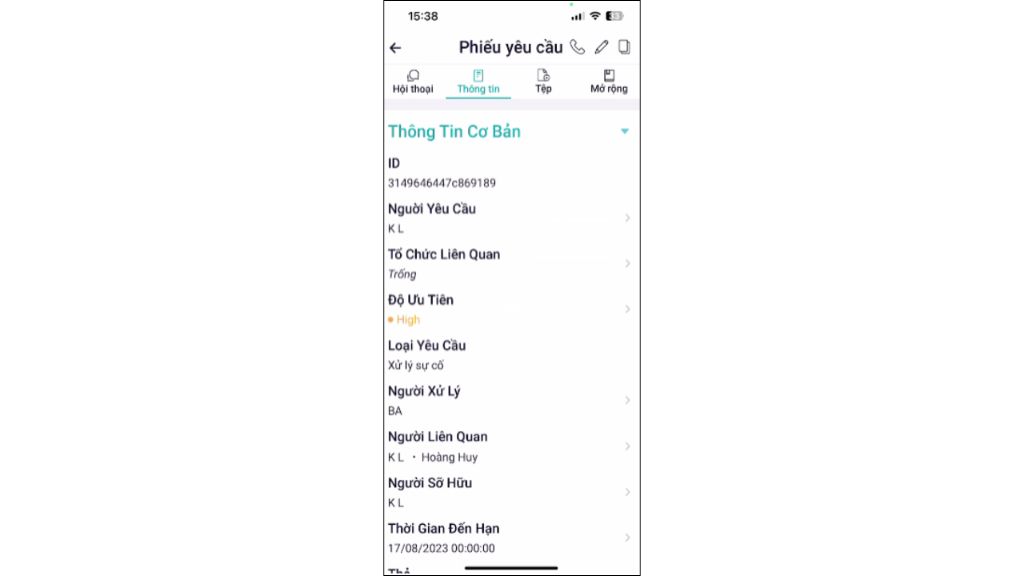
View & Process Tickets
Open any ticket to review detailed information, update ticket fields, and continue processing the request.
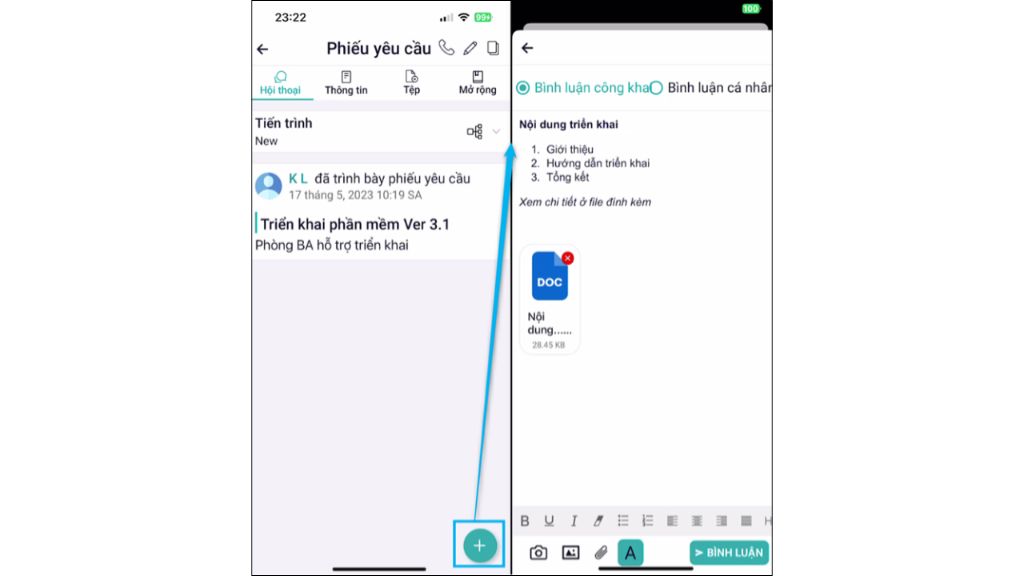
Update Ticket Progress
Users can change ticket status, assign the ticket to another user, perform workflow actions, and add comments in the Conversation section to track progress.
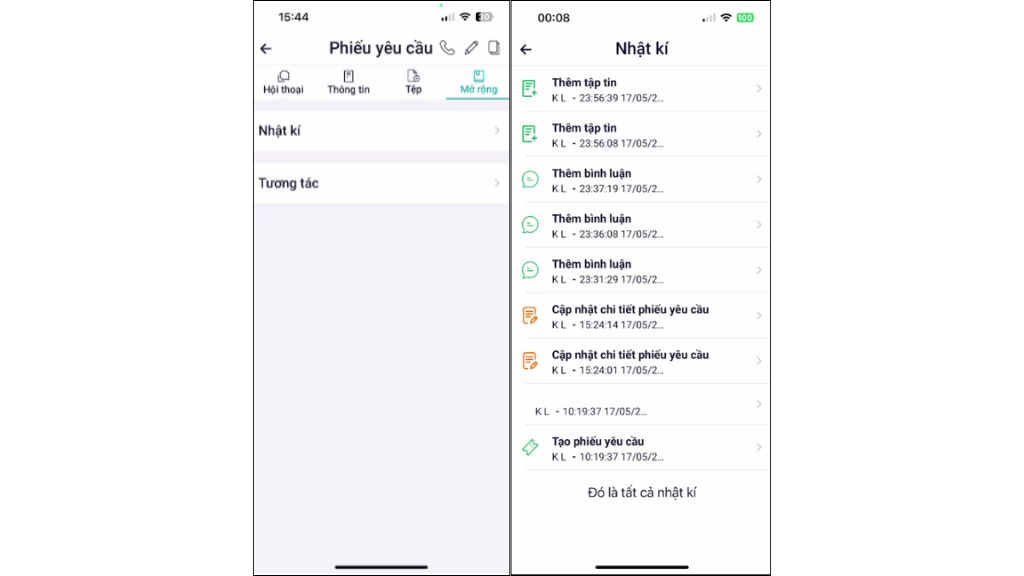
Activity Log & History
Each ticket stores attachments, activity history, and all interactions throughout its lifecycle. Users can review the complete audit trail and processing history in the More section.
Call Center
The Calls tab allows agents to make and receive business calls directly within OmniCXM without using a desk phone. Once the account is activated and online, users can manage all call activities from their mobile devices.
Make Calls
Users can place calls in two ways:
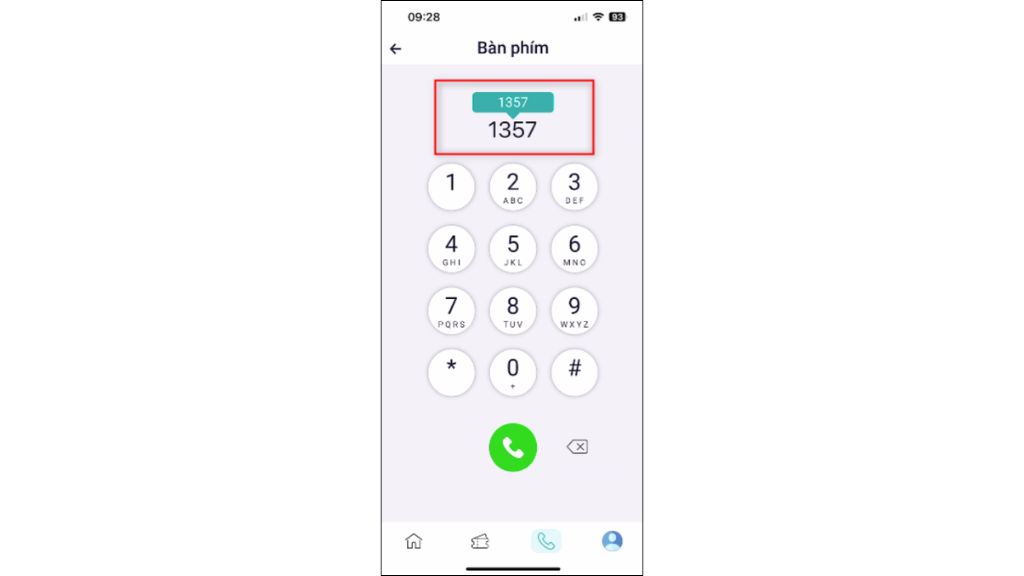
- Method 1: Open the Dial Pad, enter or paste a phone number or extension, then tap button Call.
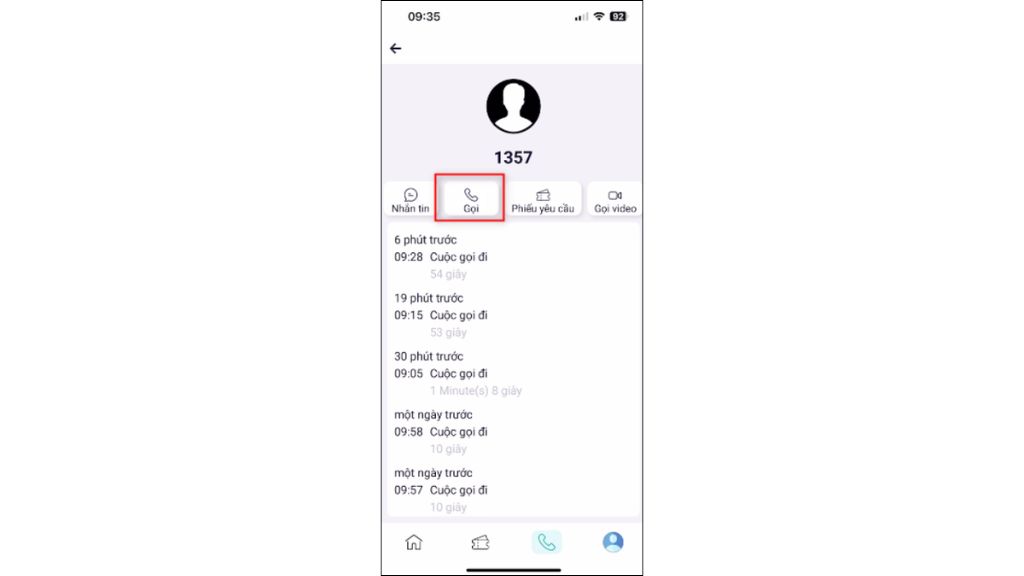
- Method 2: Open the Recent Calls tab and tap any previous call to quickly dial again.
Receive Incoming Calls
When receiving a call, the application displays a standard incoming call screen.
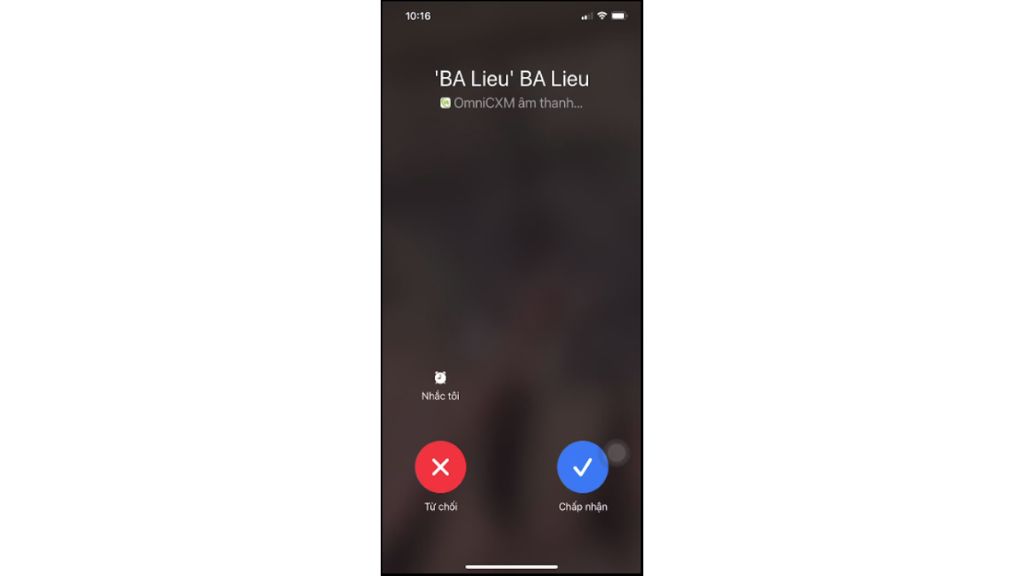
Users can:
- Tap
 to accept the call
 - Tap
 to reject the call
After answering, the active call screen displays the call duration timer.
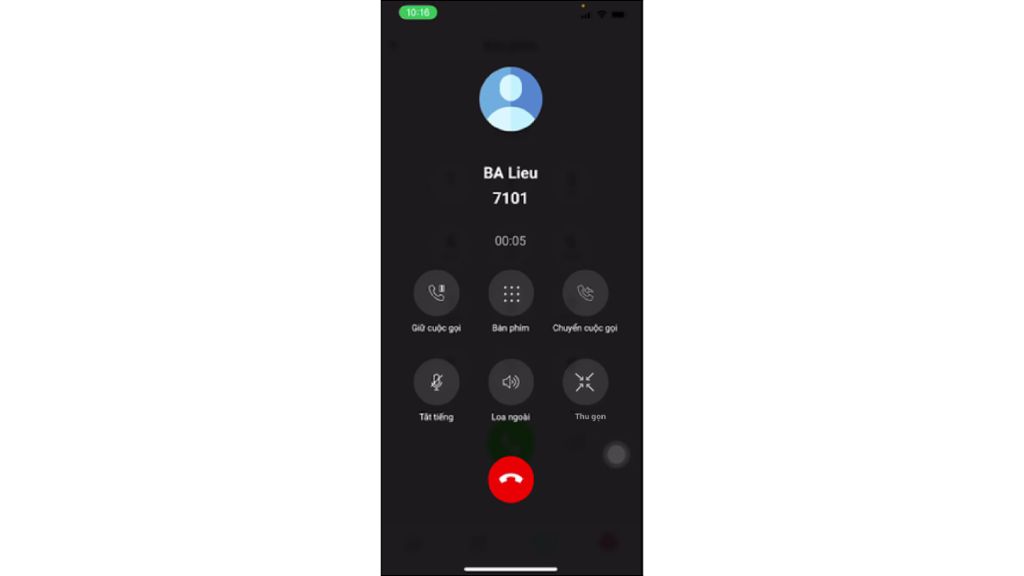
*Note: To receive incoming calls, the user's SIP account must be online (Worldfone4Biz Web/App), and the application must be running or active on the device.
Call Management
During a call, the following functions are available:
| Icon | Function | Description |
 |
Hold | Place the current call on hold |
 |
Keypad | Enter extension numbers or DTMF digits during the call |
 |
Transfer | Transfer the current call to another extension or agent |
 |
Mute | Turn the microphone on or off |
 |
Speaker | Switch audio to the loudspeaker or Bluetooth device |
 |
Minimize | Minimize the call screen while continuing the conversation |
Call History
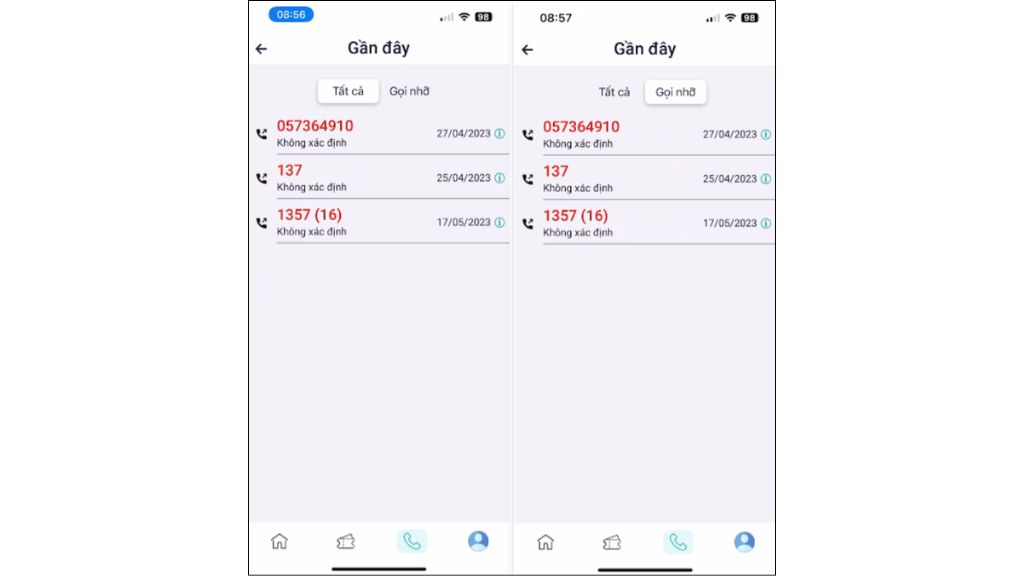
The Recent tab stores all incoming, outgoing, missed, and canceled calls.
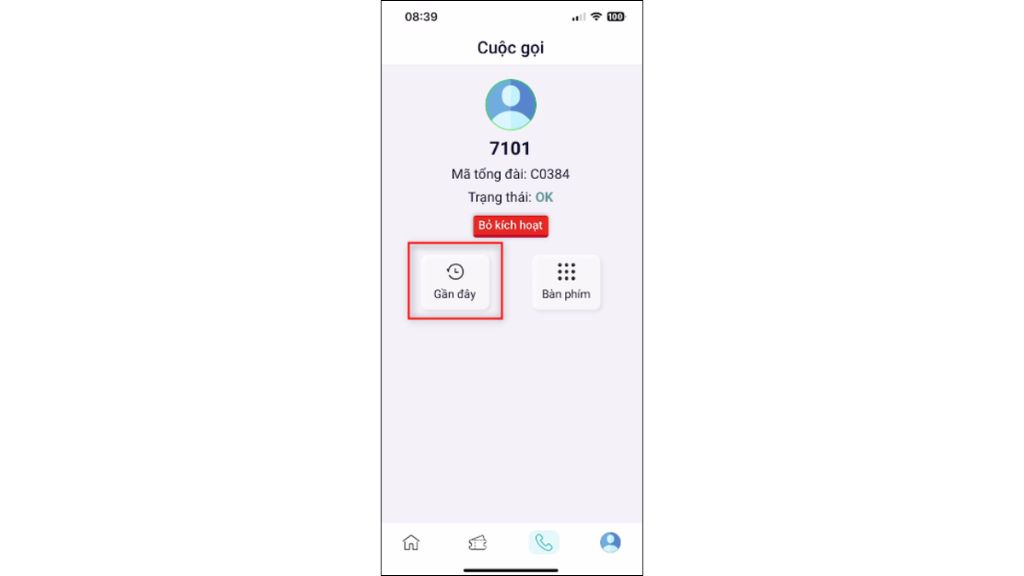
Users can view:
- All Calls
- Missed Calls
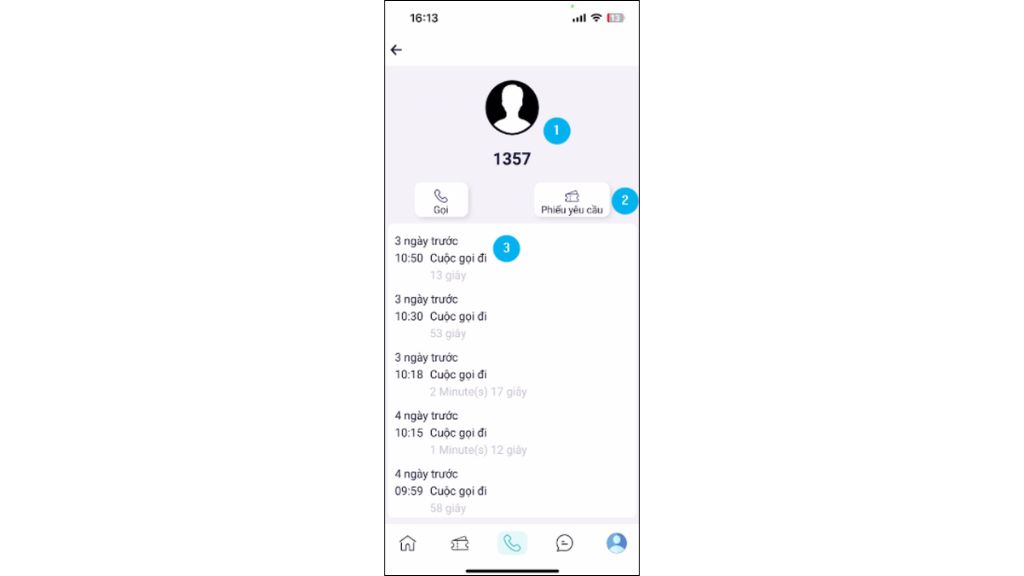
Selecting a call displays detailed information, call history, and options to call back or create a support ticket directly.
Dial Pad
The Dial Pad provides a quick dialing interface for entering or pasting phone numbers and extensions.
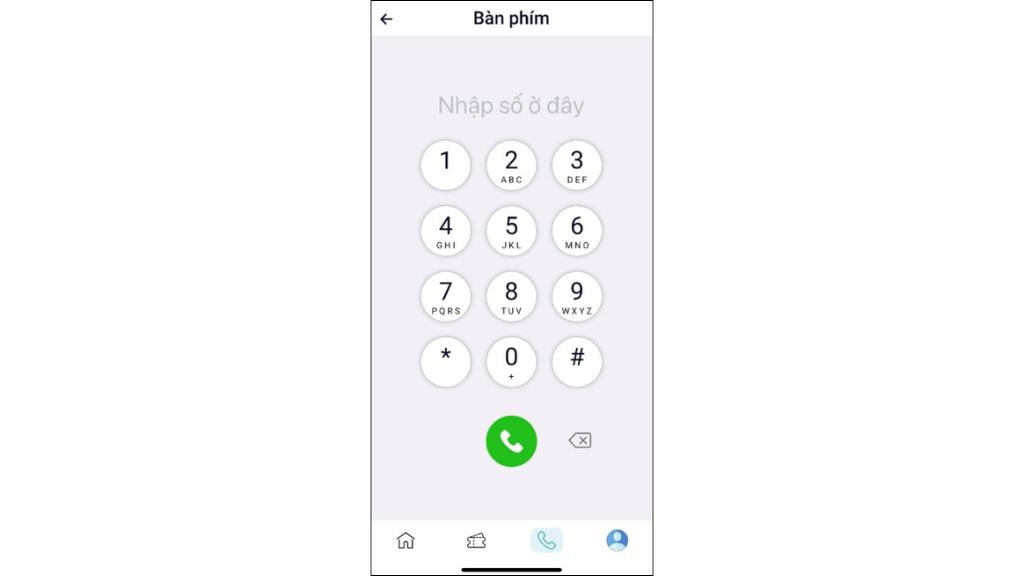
Simply tap  to place the call.
*Note: If the user's account has not been activated, the Dial Pad will be disabled.
Omnichannel Chat
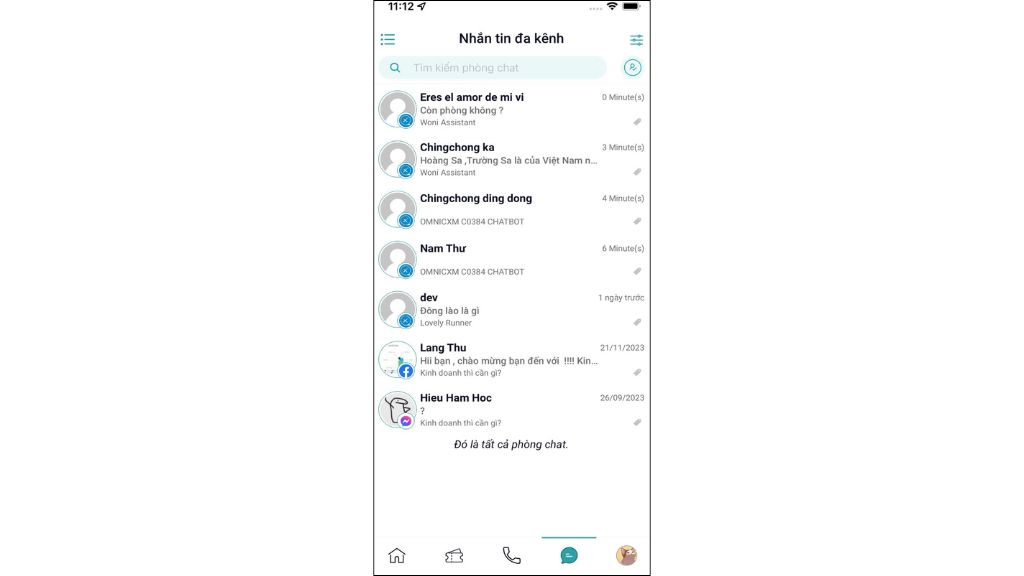
The Chat tab enables agents to manage customer conversations from multiple communication channels within a single interface.
Users can:
- View conversation lists
- Reply to customer messages
- Transfer conversations to another agent
- Send files, images, and emojis
- View customer information while chatting
Settings
The Settings tab allows users to manage their account and customize application preferences, including call settings, security options, language preferences, and application information.
Call Settings
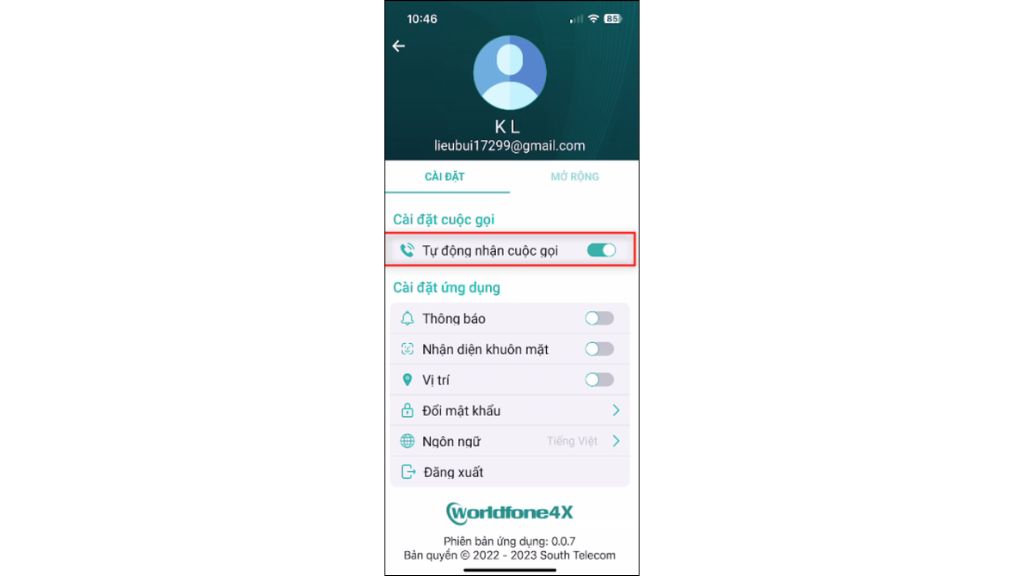
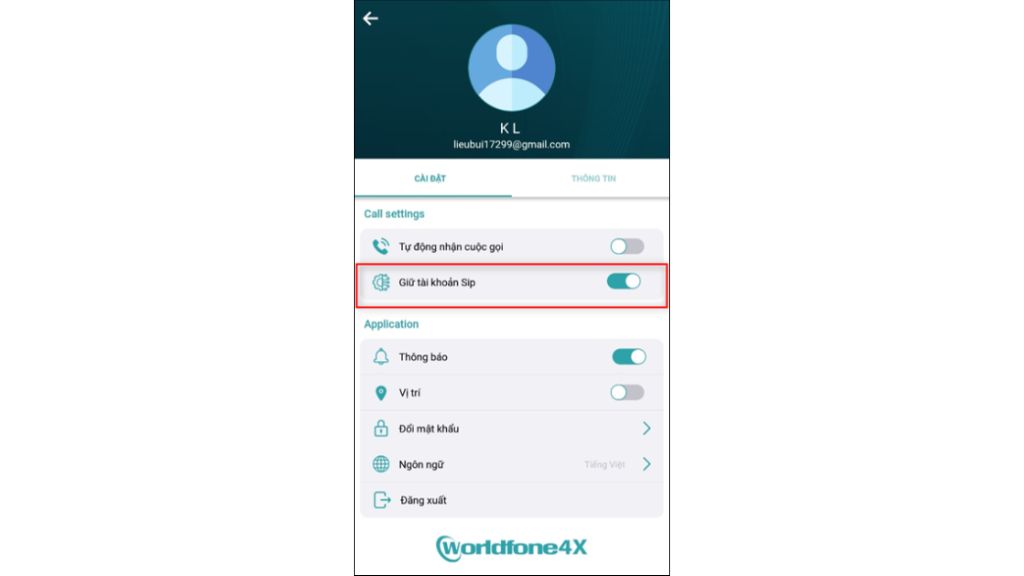
Configure how incoming calls are handled.
Available options include:
- Auto Answer: Automatically answer incoming calls.
- Keep SIP Alive (Android): Maintain SIP registration while the device screen is locked.
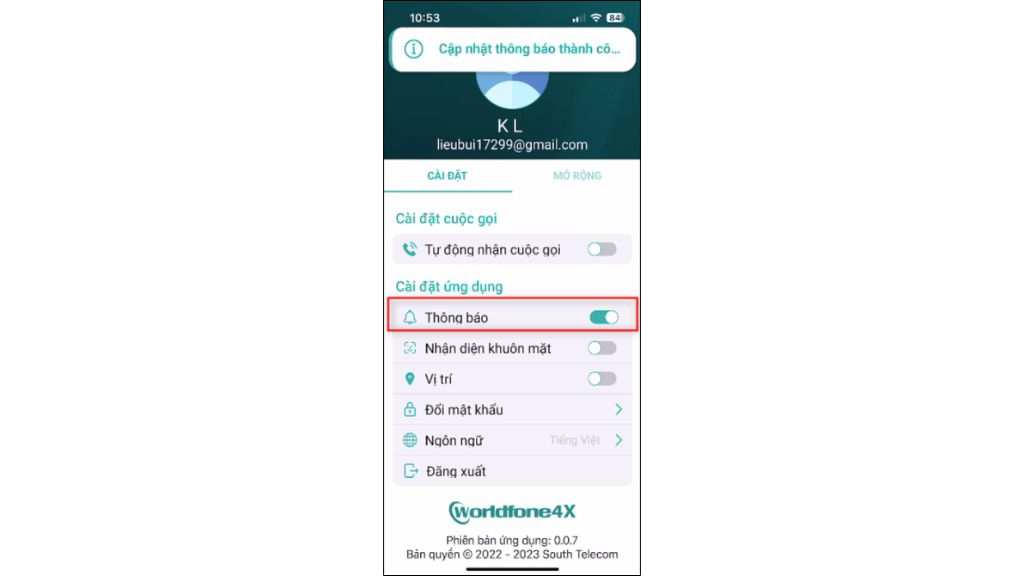
Notifications
Enable or disable notifications for calls, messages, tickets, and other application activities.
Biometric Login
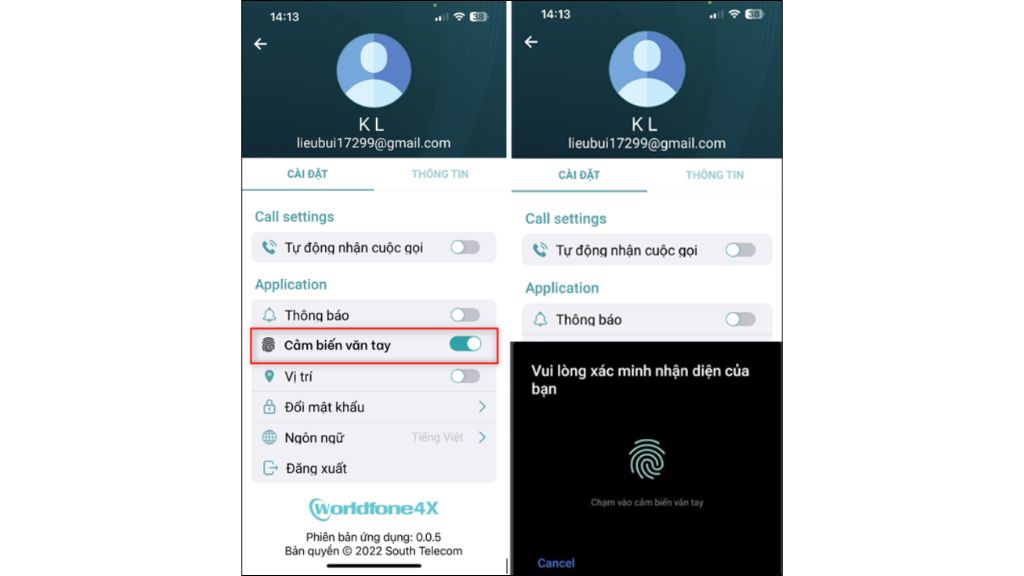
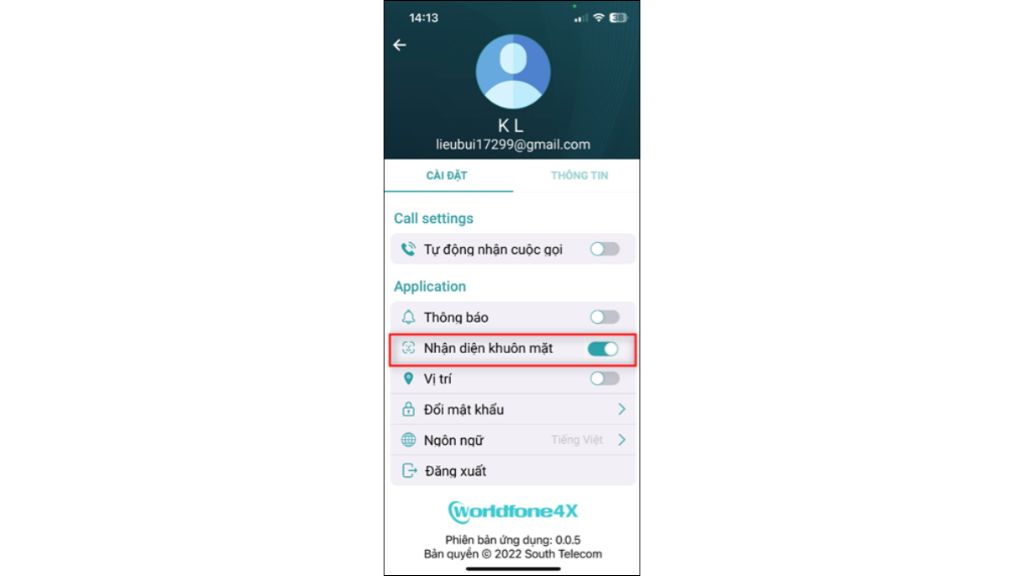
OmniCXM supports Touch ID and Face ID for faster and more secure sign-in on compatible devices.
To enable biometric authentication:
- Touch ID: After signing in to the app for the first time, open Settings and enable Touch ID.
- Face ID: After signing in to the app for the first time, open Settings and enable Face ID.
Location Management
To use the Map feature, enable Location Permission in the application settings. The system will then record and display the user's latest login location on the map.
Change Password
Users can change their password directly within the application by entering the current password, a new password, and confirming the new password.
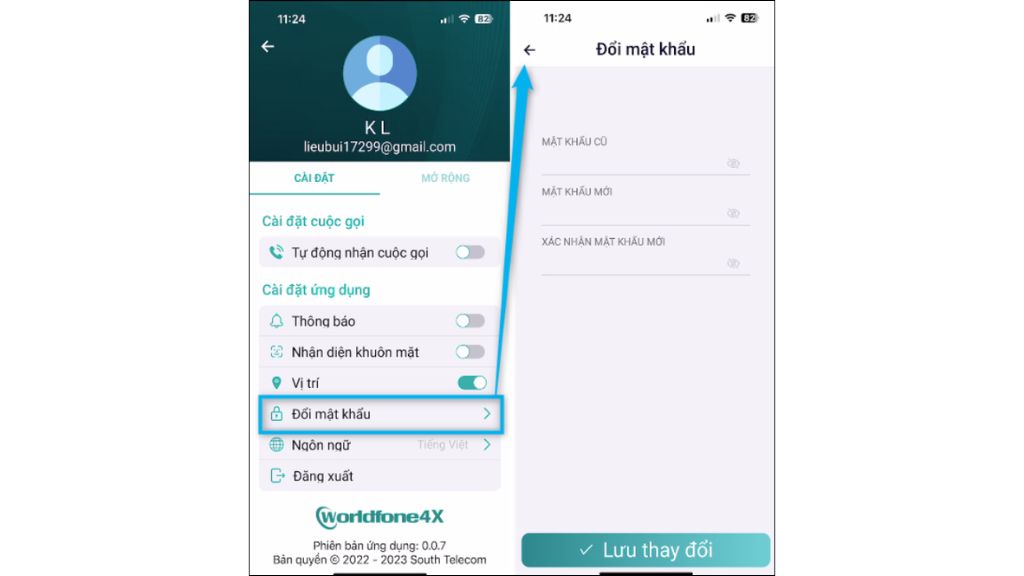
*Note: Passwords must contain at least 8 characters, including one uppercase letter, one lowercase letter, one number, and one special character.
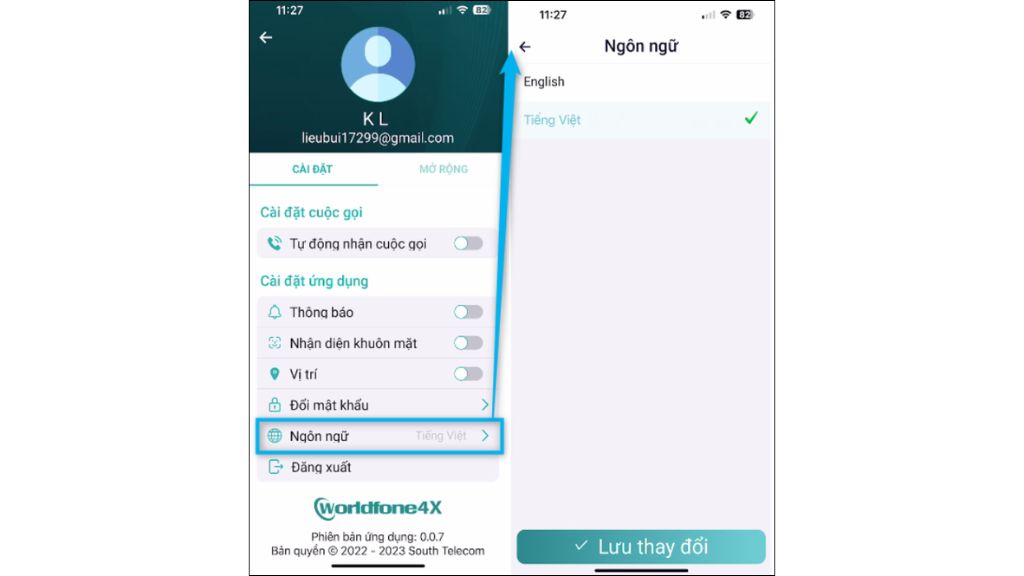
Language
Switch the application interface between English and Vietnamese.
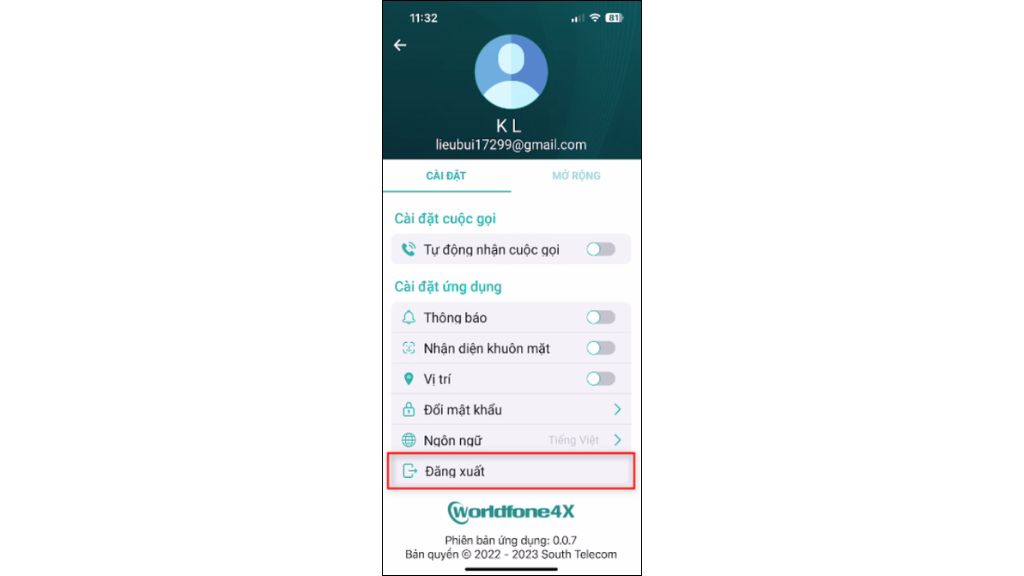
Sign Out
Tap Sign Out in the Settings menu to securely log out of the application.
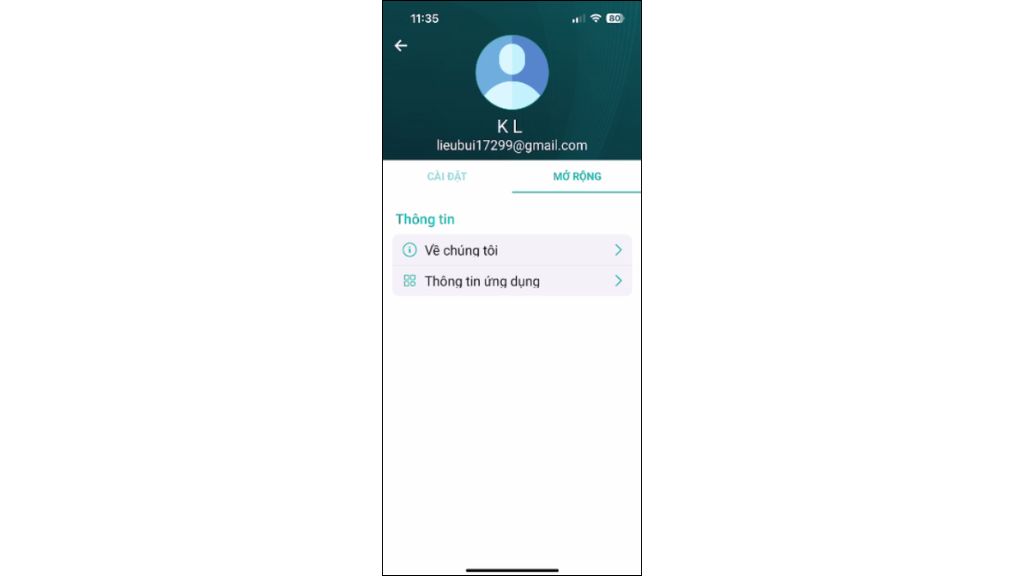
About
The More section displays the current OmniCXM application version and provides additional information about South Telecom.
Blog relate to
Worldfone4Biz User Guide for Mobile and PC
July 03, 2026
OmniCXM - Worldfone4X Mobile Login Guide
July 02, 2026
Worldfone4Biz Login Guide
July 02, 2026


