

OmniCXM - Worldfone4X Mobile Login Guide
After installing the application, users need to sign in to access the full features of OmniCXM - Worldfone4X Mobile. Follow the steps below to sign in and start managing omnichannel conversations, calls, tickets, and more—all from a single mobile app.
Sign In to the OmniCXM App
Step 1: Open the OmniCXM Worldfone4X app on your mobile device.
Step 2: Sign in using one of the following methods:
- Option 1: Enter your Username and Password registered on OmniCXM.
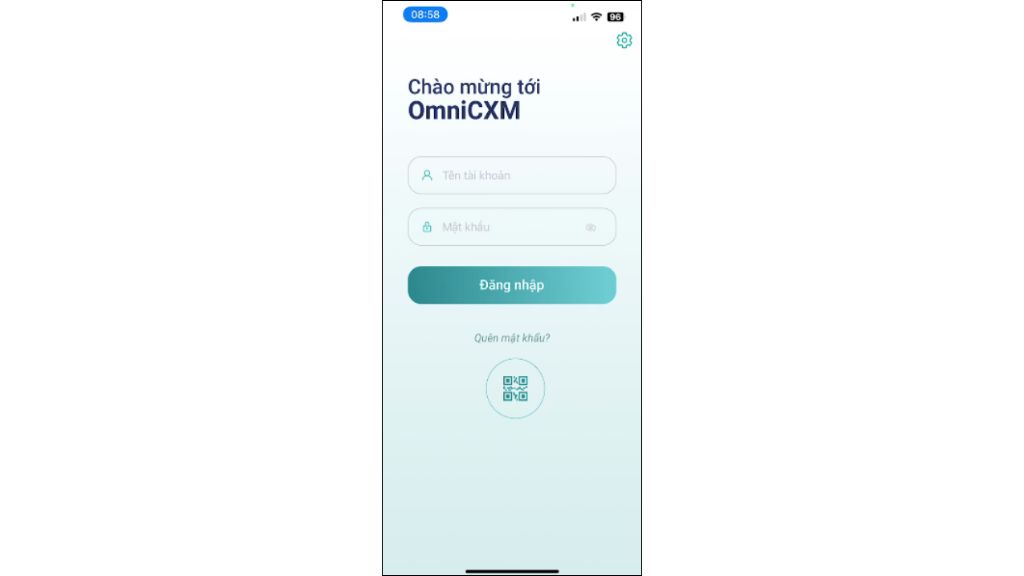
- Option 2: Scan the QR code generated from your registered Worldfone4X Portal account to quickly sign in to the application.
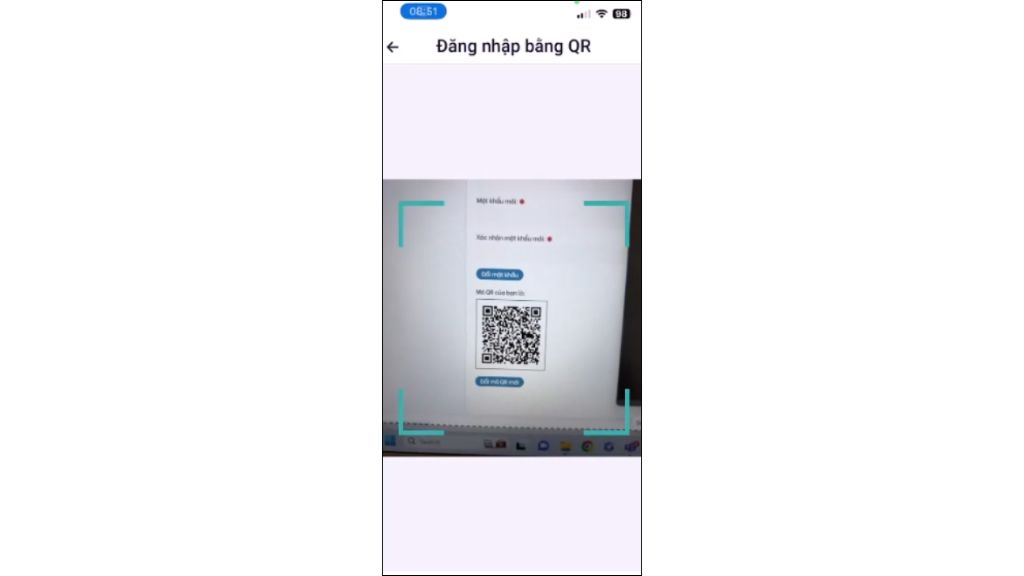
Step 3: After signing in successfully, you can access a wide range of features, including: Omnichannel conversations, Ticket management, Making and receiving calls, Dashboard monitoring and detailed reporting,...
Forgot Your Password
If you've forgotten your password, follow these steps to reset it:
Step 1: On the Sign In screen, tap Forgot Password.
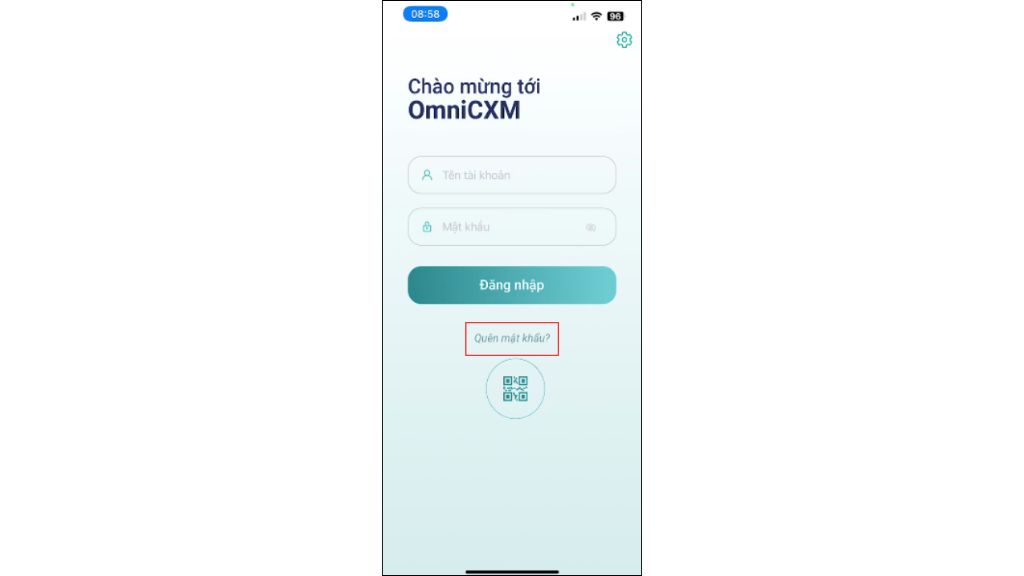
Step 2: Enter the email address associated with your OmniCXM account, complete the verification code, and tap Send New Password.
.jpg)
Step 3: A new password will be sent to your registered email address. Open the email and use the new password to sign in to the OmniCXM app.
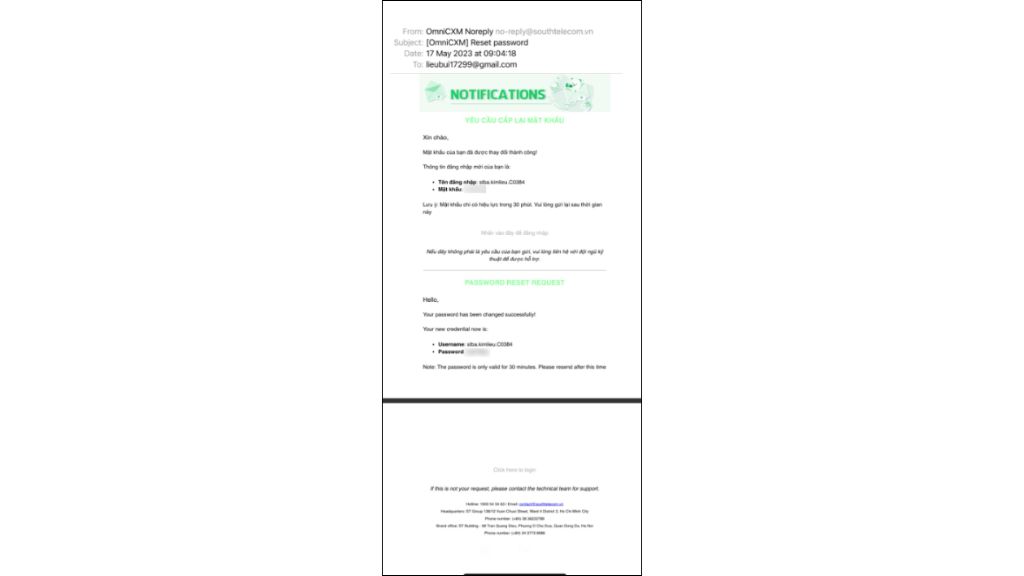
*Note: If you do not receive the email, please check your Spam/Junk folder or contact your system administrator for assistance.
Blog relate to
OmniCXM - Worldfone4X Mobile User Guide
July 08, 2026
Worldfone4Biz User Guide for Mobile and PC
July 03, 2026
Worldfone4Biz Login Guide
July 02, 2026


