

Worldfone4Biz User Guide for Mobile and PC
After signing in successfully, users can access all Worldfone4Biz features to make and manage business calls from their mobile devices or PCs. The application is organized into four main tabs located in the bottom navigation bar:
- Recents: Manage call history.
- Contacts: Search contacts and place calls.
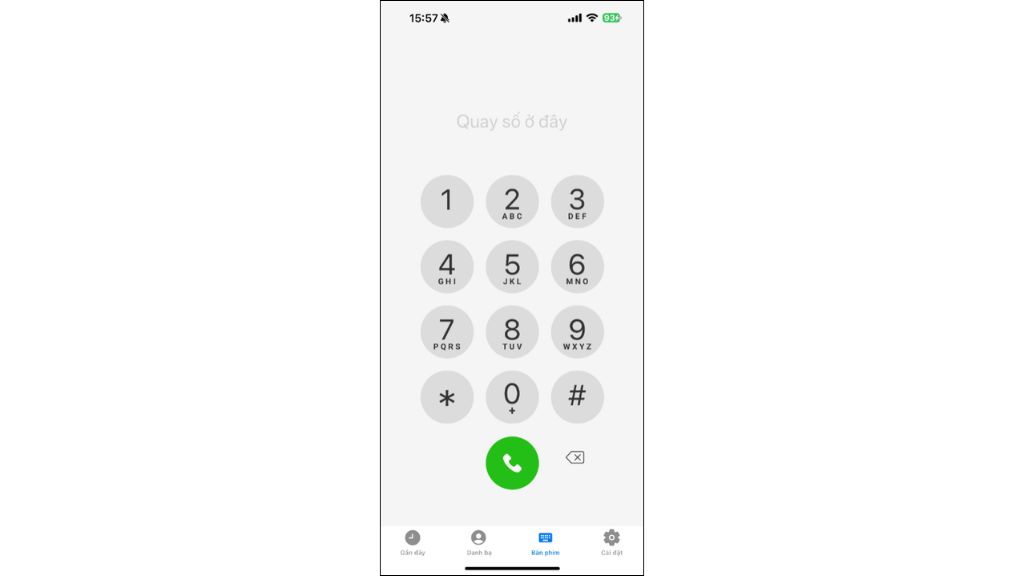
- Dialpad: Dial phone numbers or PBX extension numbers.
- Settings: Manage your account and configure application settings.
Making Outbound Calls
Worldfone4Biz supports calling through SIP (default) or WebRTC (can be enabled in Settings).
You can make outbound calls in the following ways:
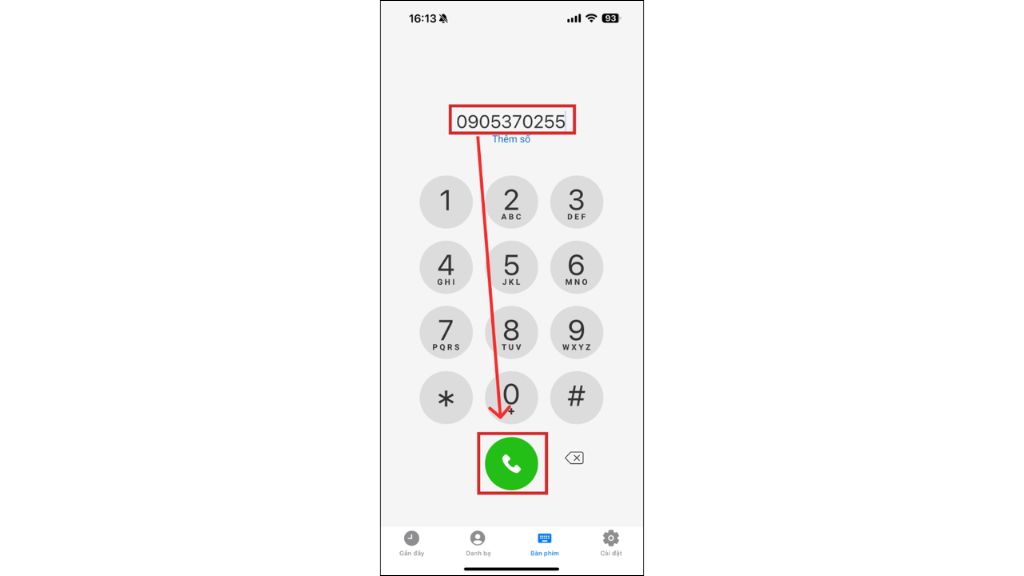
- Enter a phone number or extension in the Dialpad tab
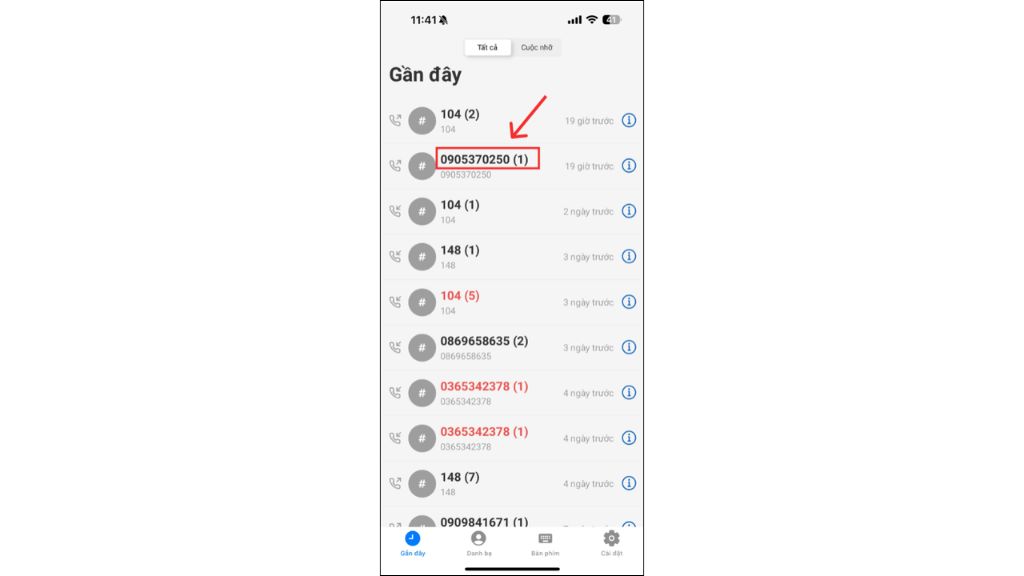
- Redial from the Recents tab
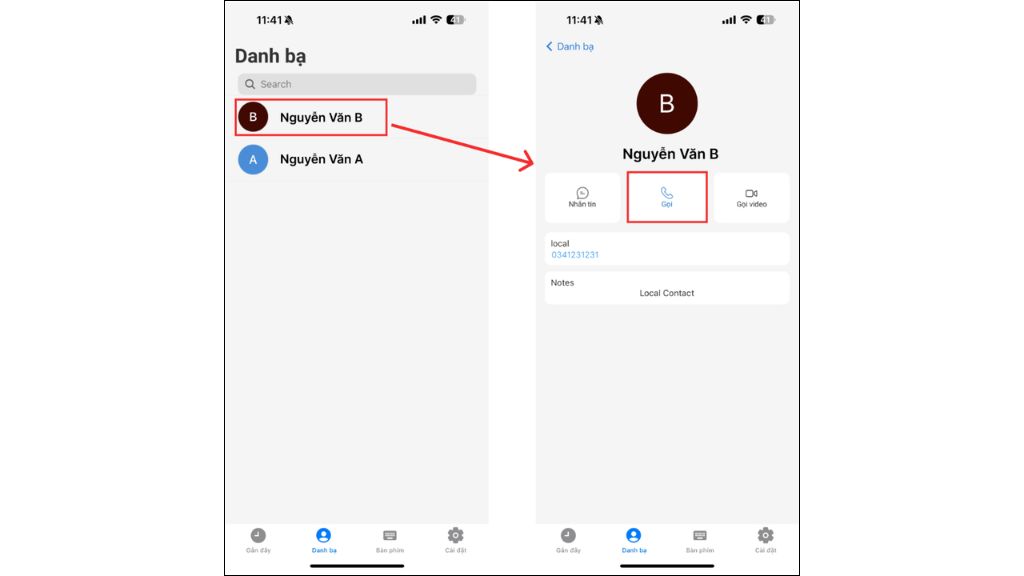
- Select a contact from the Contacts tab
Answering or Rejecting Incoming Calls
When an incoming call is received, the application displays a call screen similar to the native phone interface.
You can:
- Tap
 to accept the call
 - Tap
 to reject the call
Call Management
During a call, the following controls are available:
| Icon | Function | Description |
 |
Speaker | Switch the call to speaker mode |
 |
Hold | Put the call on hold, the other party will hear hold music |
 |
Mute | Turn the microphone on or off during the call |
 |
Dialpad | Open the keypad to enter an extension or feature code |
 |
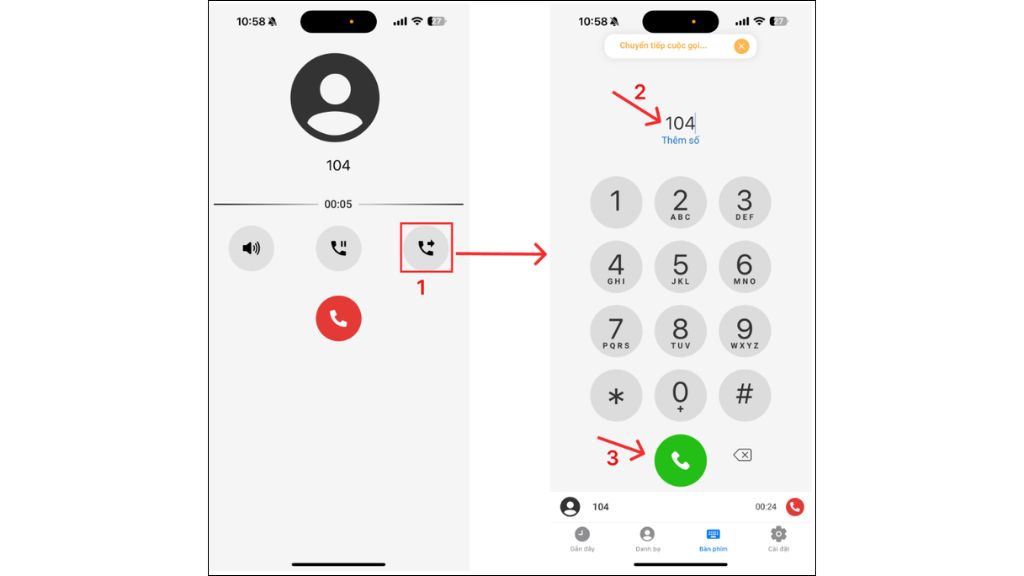
Transfer | Transfer the call to another user |
 |
End Call | End the current call |
When you tap Transfer, the dialpad appears. Enter the destination extension number, then tap the Call button to transfer the active call to the selected agent.
Call History
The Recents tab stores and manages your complete call history, allowing you to quickly review previous calls and perform follow-up actions.
The Recents tab includes two filters:
- All: Displays all incoming, outgoing, and missed calls
- Missed: Displays only missed calls
Call records display basic information such as Phone number, Call time, Number of calls. The most recent calls appear at the top of the list.
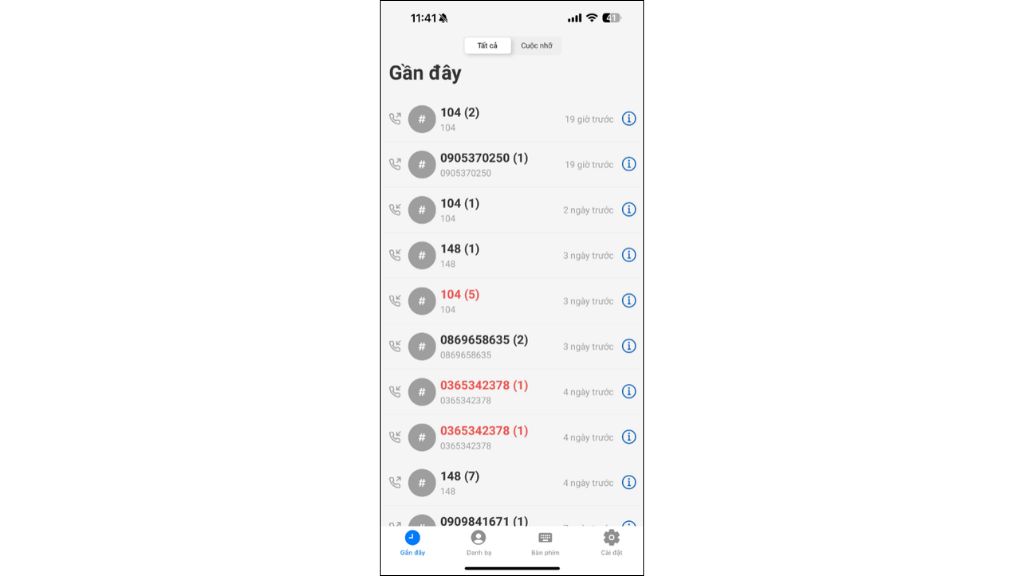
| Icon | Status |
 |
Incoming Call |
 |
Outgoing Call |
 |
Missed Call |
Available Actions
- Quick Redial: Tap a phone number to call it again

- View Details: Tap the "i" icon to view complete call information

Call Details
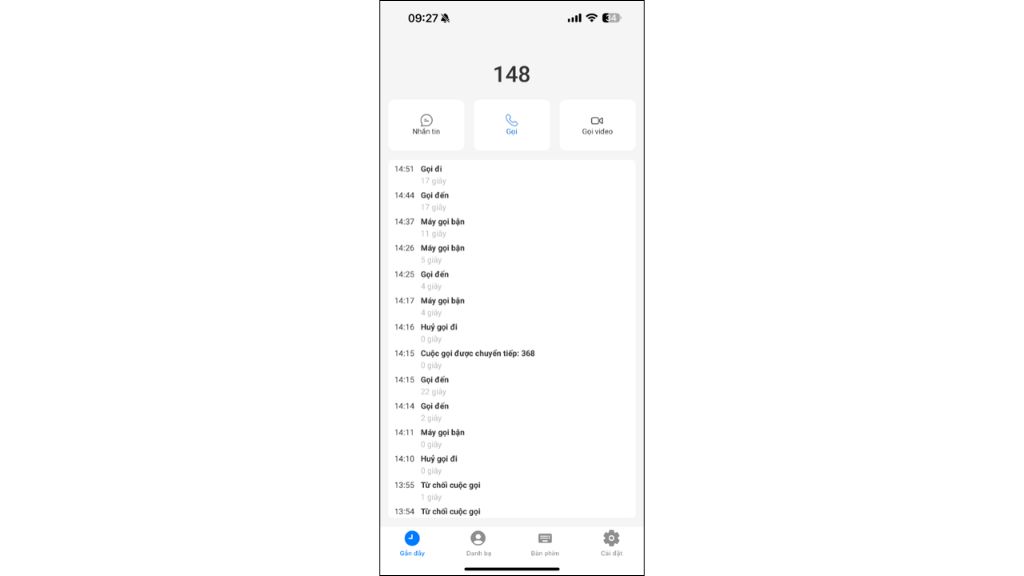
The Call Details screen displays:
- Phone number
- Call history with the selected number
- Call date and time
- Call duration
- Call status (Incoming, Outgoing, Missed, Busy, Rejected, Transferred, etc.)
Contacts
The Contacts tab allows users to:
- View all contacts synchronized from the device or downloaded from the PBX system
- Search contacts by name or phone number
- View contact details and place calls directly
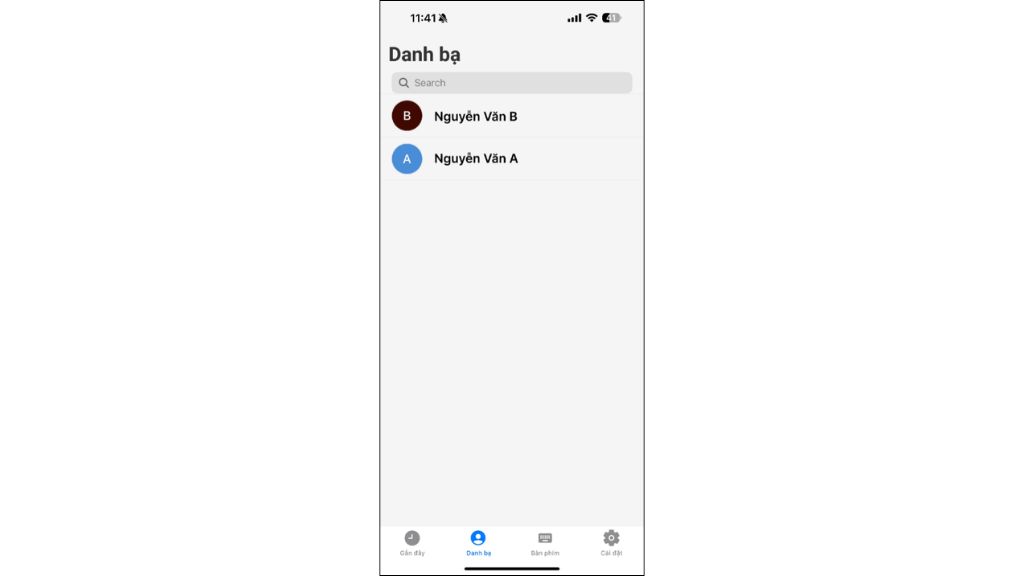
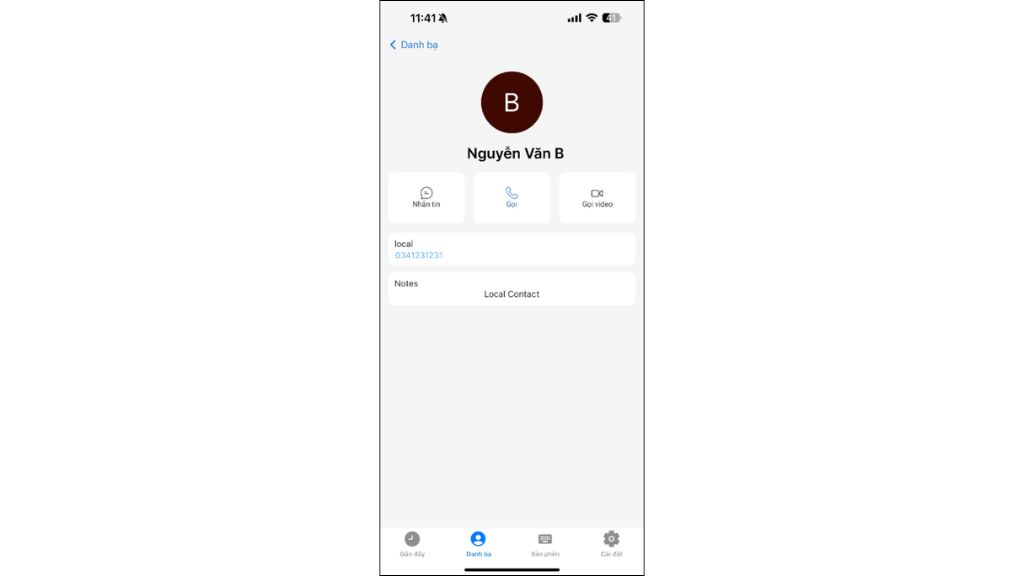
Selecting a contact displays:
- Profile picture
- Contact name
- Phone number
- Notes (if available)
Available Actions
From the contact details screen, users can:
- Send messages
- Make voice calls
- Make video calls
*Note:
- Contacts are synchronized with your device's contact list. If any contact information changes, go to Settings and tap Sync Contacts to update the application.
- Contacts are not synchronized automatically each time the app is opened. To synchronize contacts, select Sync Contacts in Settings, or enable Auto Sync Contacts on Startup for automatic synchronization.
Dialpad
The Dialpad tab provides a keypad for manually entering phone numbers or extension numbers and making calls instantly.
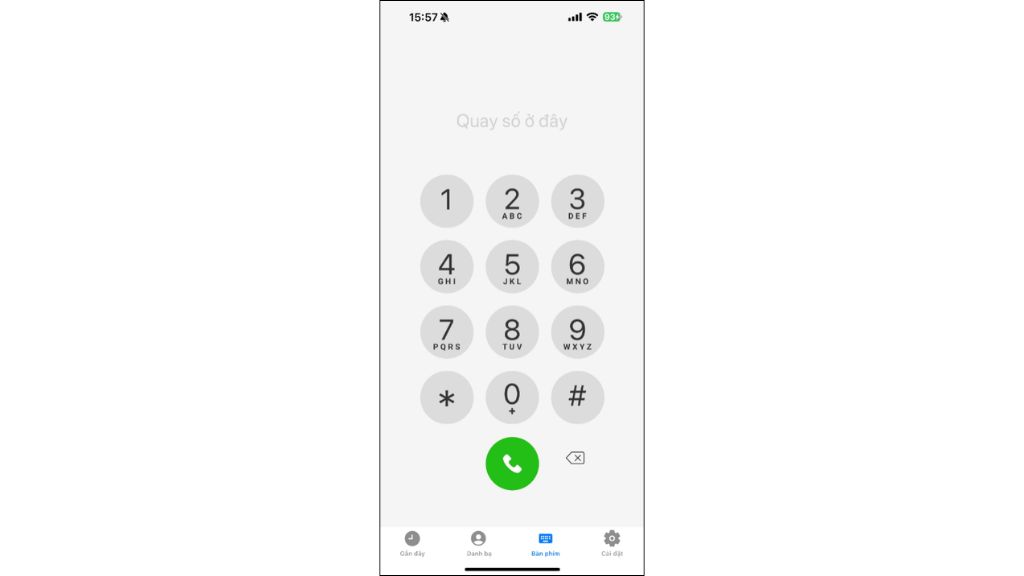
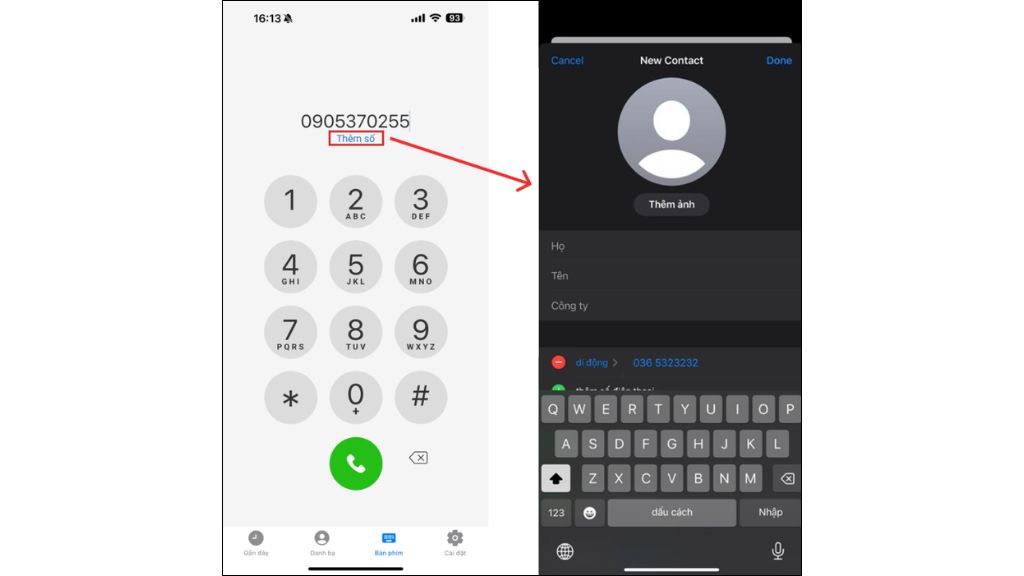
To save a new contact, enter a phone number in the Dialpad, then tap Add New and save the contact information. Once saved, the contact will automatically appear in the Contacts tab.
System Settings
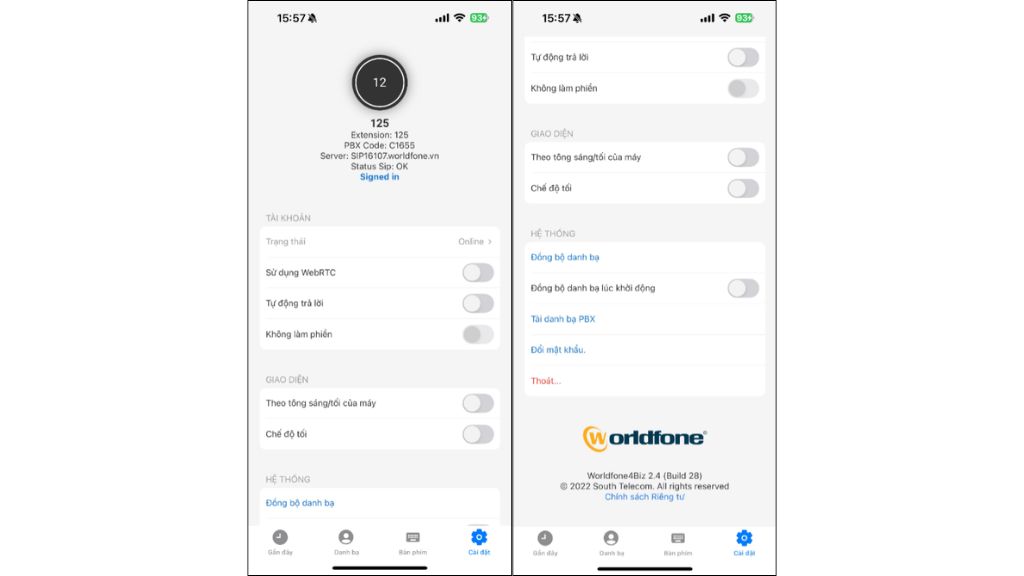
The Settings tab allows users to configure personal preferences and application settings.
| Category | Description |
| Account Information |
- Extension - PBX Code - SIP Status |
| Account Settings |
- Change Online status - Enable WebRTC calling - Enable Auto Answer (Auto Answer does not work when the device screen is locked or the app is running in the background) - Enable Do Not Disturb mode |
| Appearance |
- Follow the device's Light/Dark mode automatically - Switch to Dark Mode |
| System |
- Sync contacts - Enable automatic contact synchronization on startup - Download contacts from the PBX system - Change your account password - Sign out of the application |
Blog relate to
OmniCXM - Worldfone4X Mobile User Guide
July 08, 2026
OmniCXM - Worldfone4X Mobile Login Guide
July 02, 2026
Worldfone4Biz Login Guide
July 02, 2026


